Reach your audience in their own language. Give a single artwork several language versions, each with its own scene, all behind the same trigger image.
Business · Enterprise
What is Multi-Language Artwork?
Multi-Language lets a single artwork hold several language versions. Each version is its own editable scene, but they all live behind the same trigger image. Add the languages you need, and let each viewer experience your artwork in their preferred language.
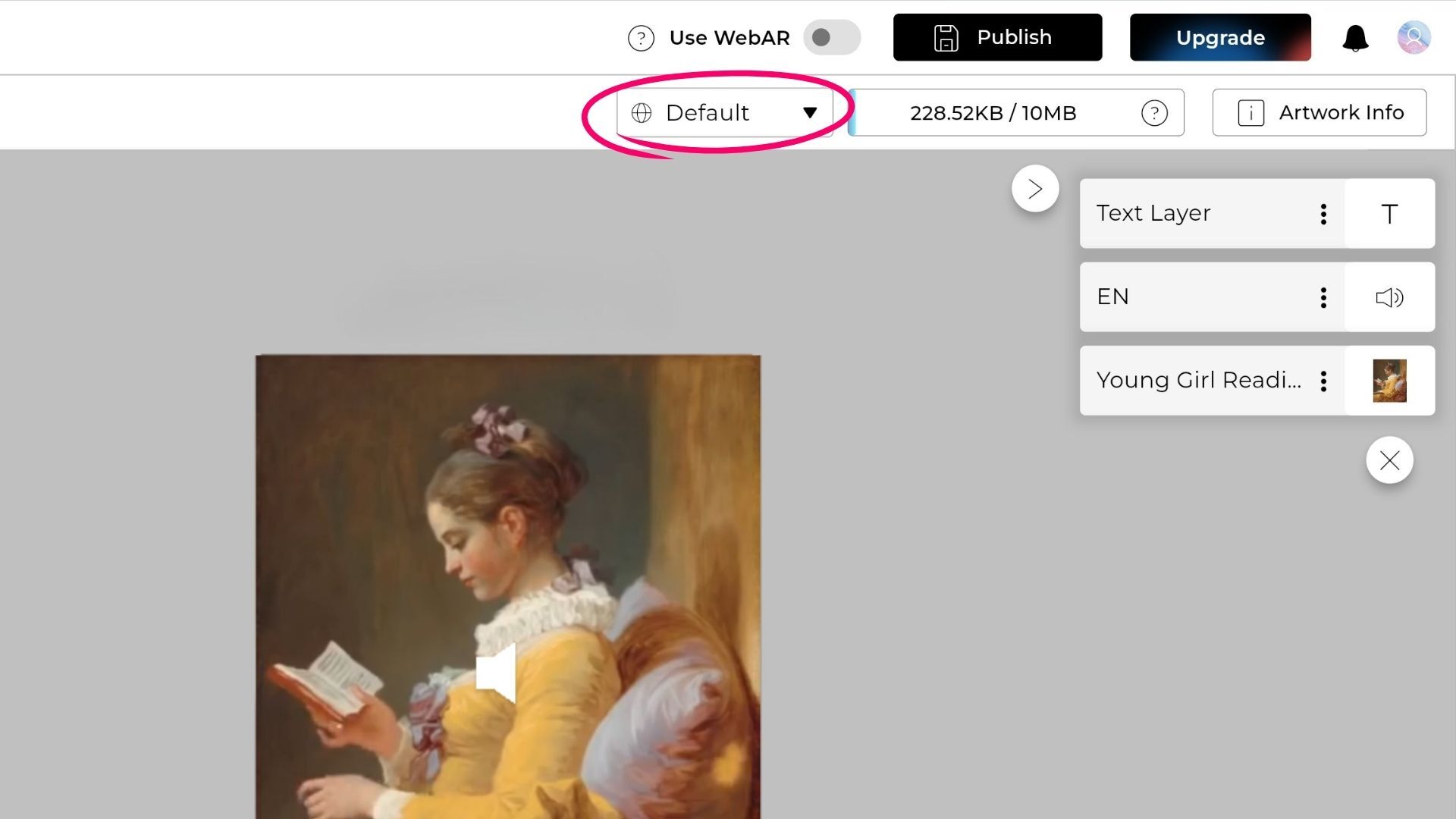
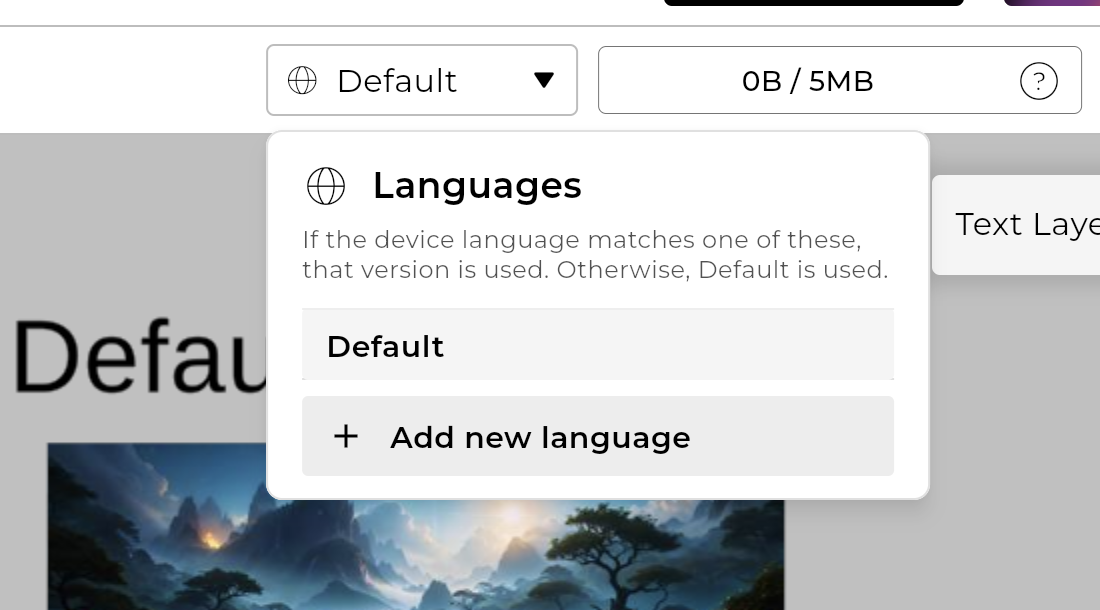
Multi-Language comes with the Business and Enterprise plans. You will find it in the top bar of the Artivive Editor, in a dropdown button labelled Default. The button is there for every account, and it opens once your plan includes the feature.
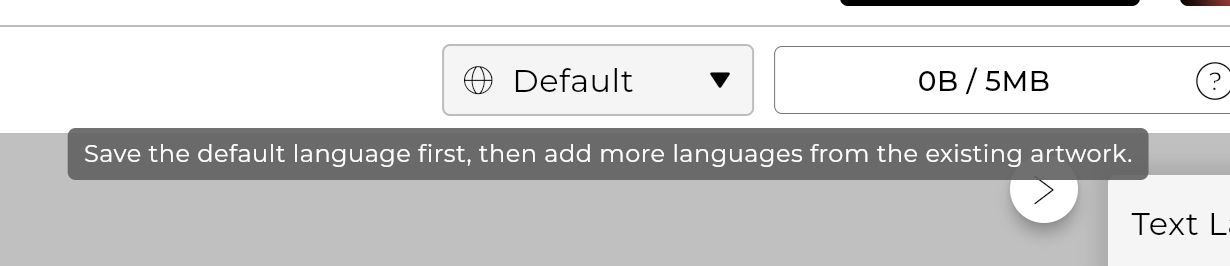
Before you startLanguages are added to an artwork that already exists and works. Build and save your default artwork first, then add versions to it.
Step 1: Create your artwork
Open the editor from Create new Artwork and add your target image as usual. In the top bar you will see the language dropdown, already set to a default language. Build your default scene and save it. Languages come later, once the artwork exists.
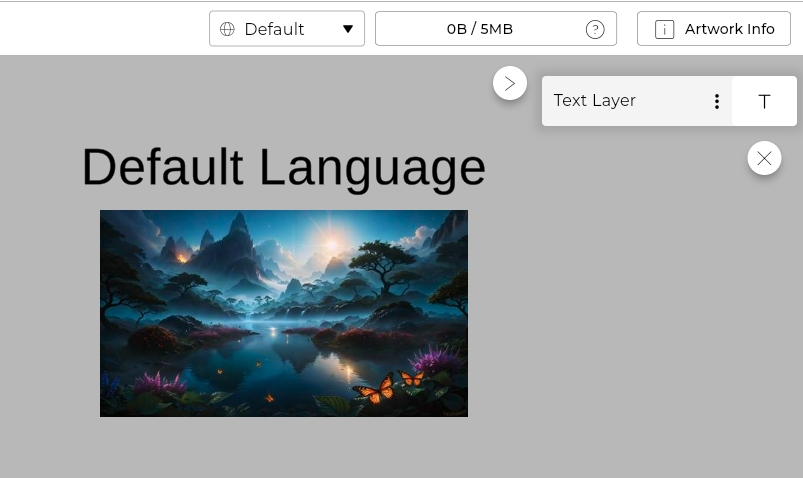
The language dropdown in the editor top bar, with the default language selected.Save the artwork before adding any language versions.
Think of it as several artworks in oneEach language version is a full, separate scene, almost its own artwork, just kept under one trigger image. That is why the flow is: build and save your default, reopen the artwork, add a language, and save again. You only ever edit one version at a time, so always save before you switch to another language.
Step 2: Reopen the finished artwork
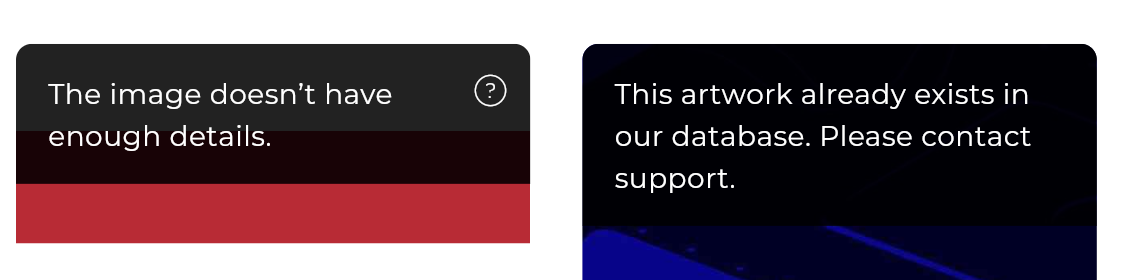
Once the artwork has finished processing, open it again with Edit artwork. Languages can only be added to an artwork that works, with no error messages. You can check this on the artwork card on your home screen.
Open the processed artwork again with Edit artwork.
Step 3: Add a new language
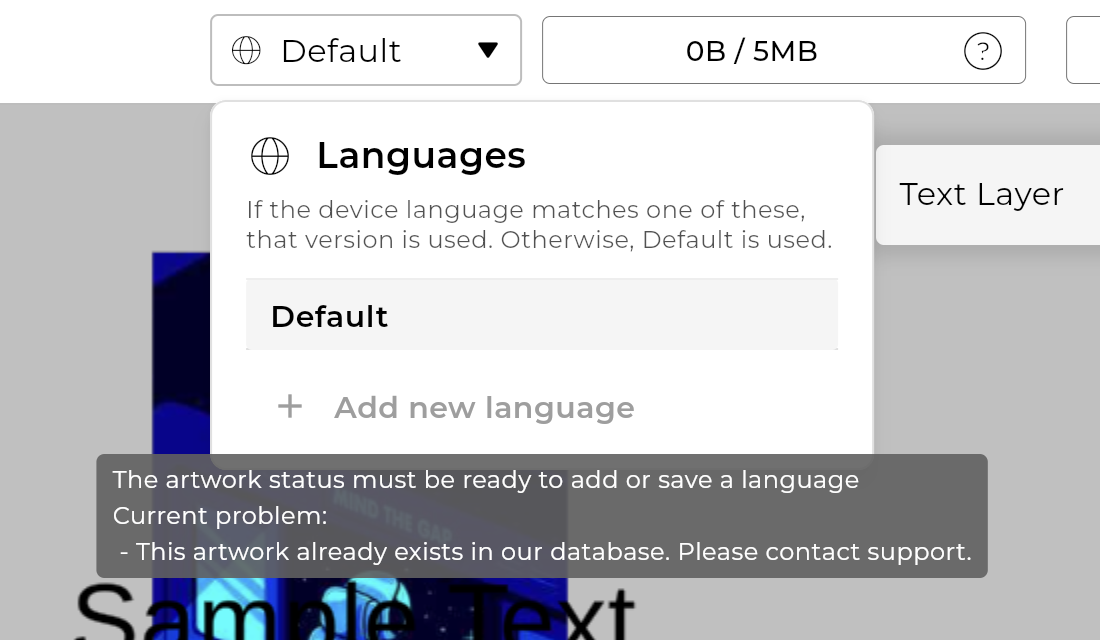
If the artwork still has an error, the Add New Language button in the dropdown is greyed out. Hover over it to see what to fix.
When an artwork has errors, the Add New Language button is disabled and a tooltip explains why.
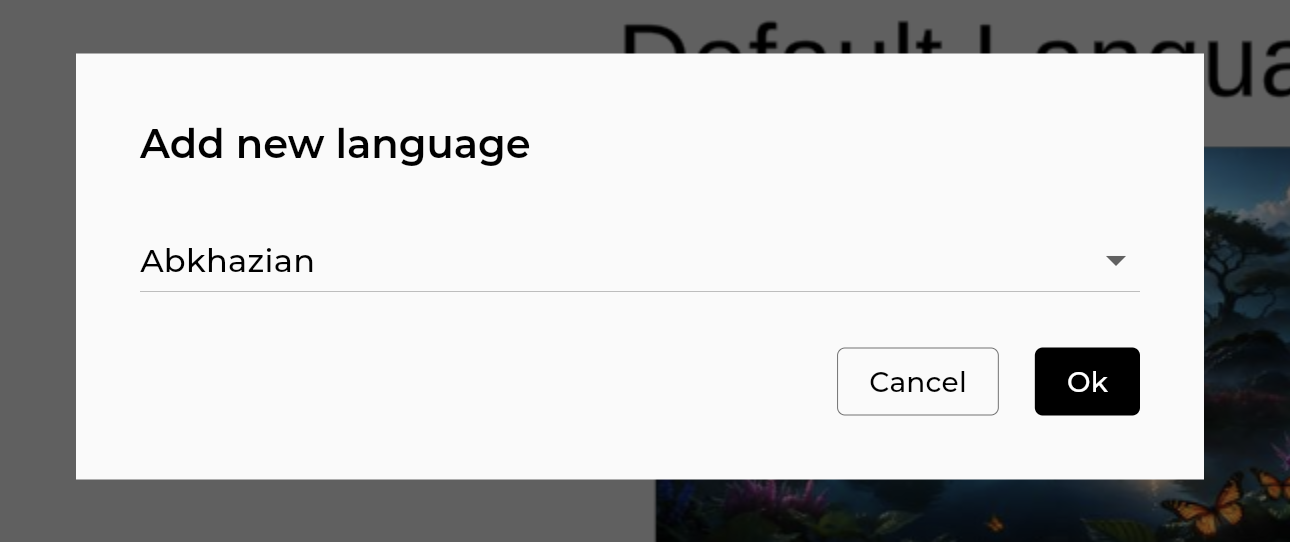
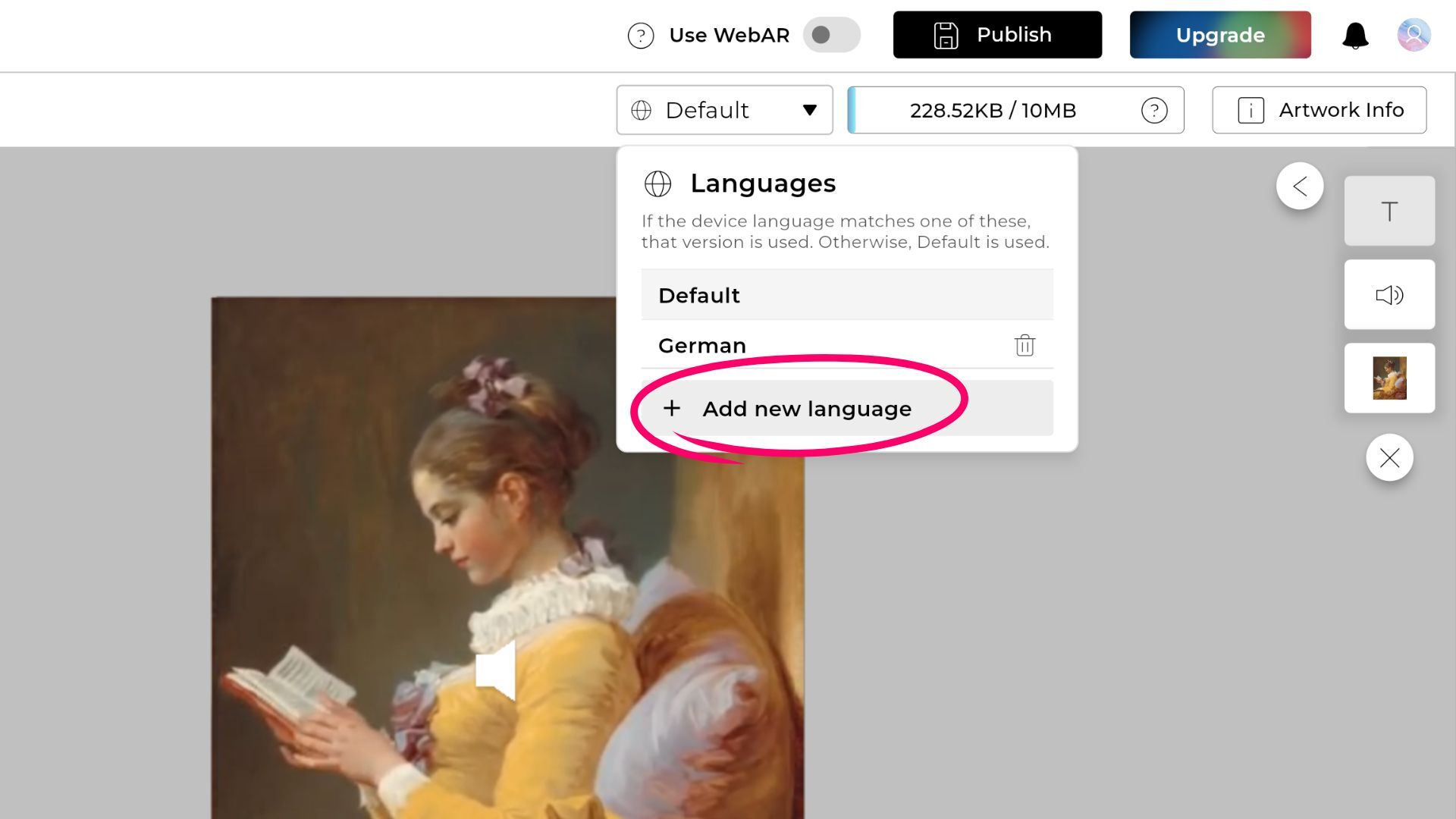
If everything is fine, press Add New Language. A popup opens with the full list of languages to choose from.
The Add New Language popup.Pick from the full list of available languages.
Step 4: Pick a language and confirm
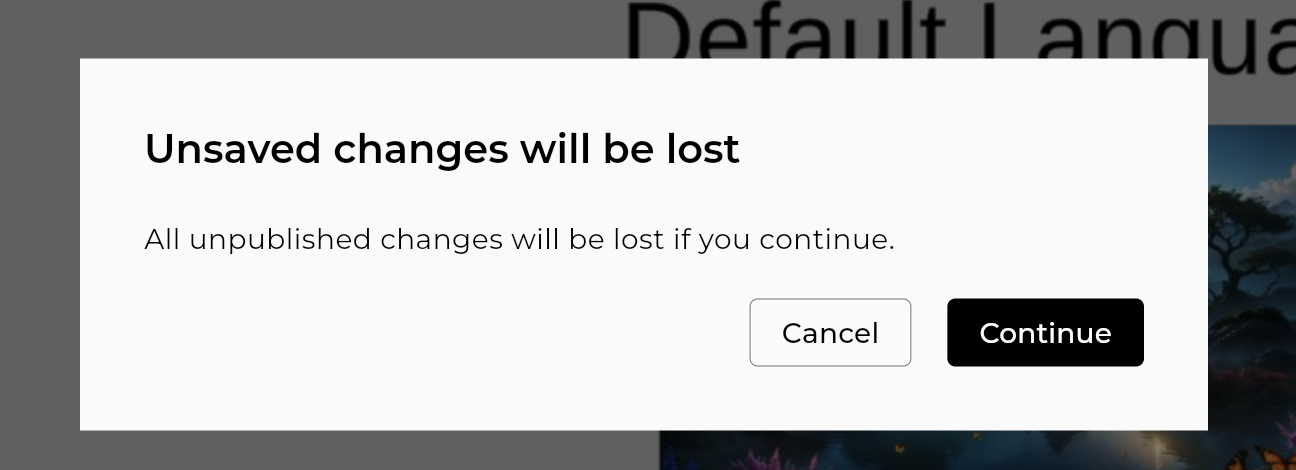
Choose your language and press OK. A safety popup confirms the switch.
A safety popup confirms the switch.
Heads upSwitching languages discards any unsaved changes to the version you are on. The popup warns you first, so save before you switch if you want to keep them.
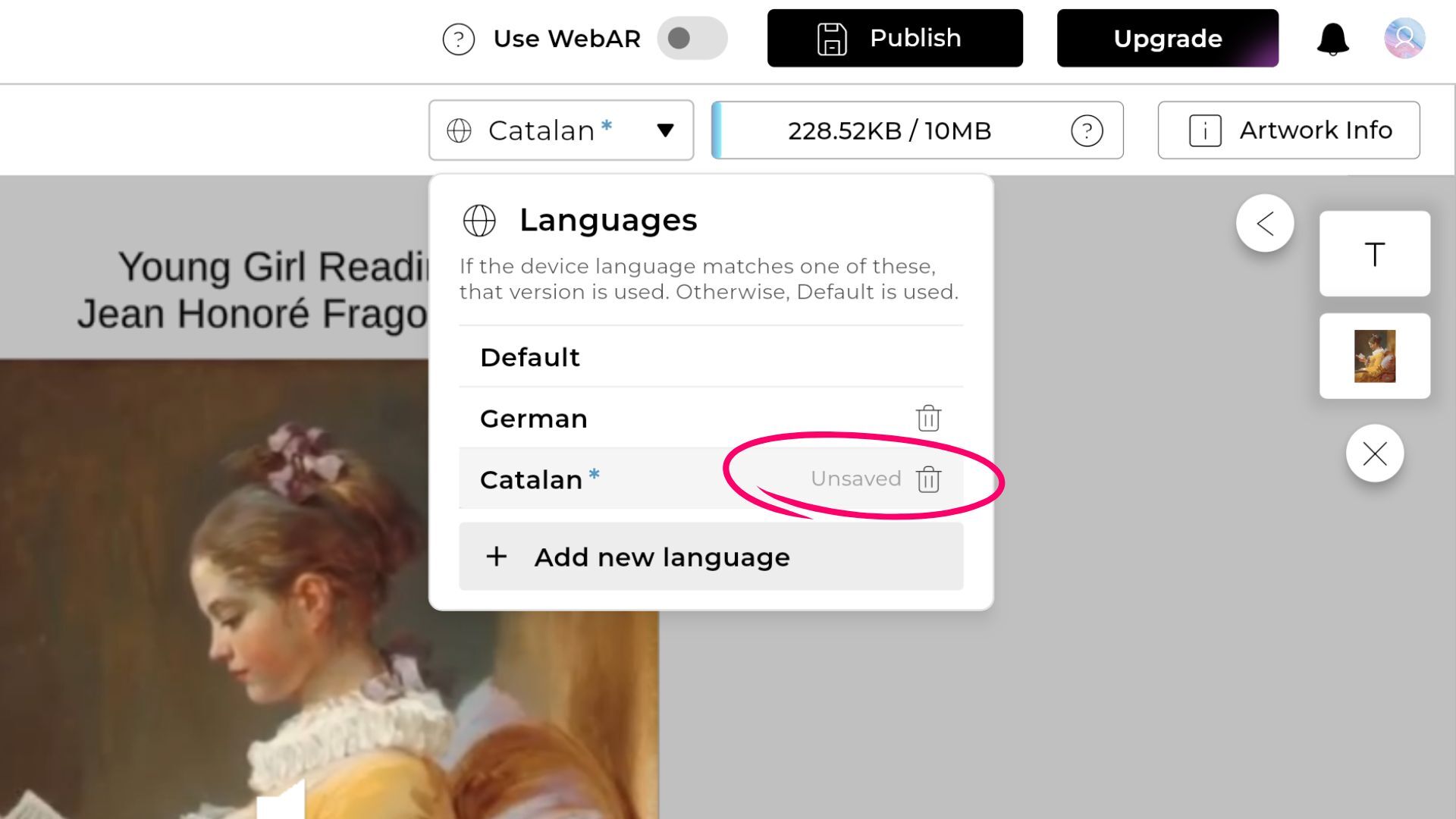
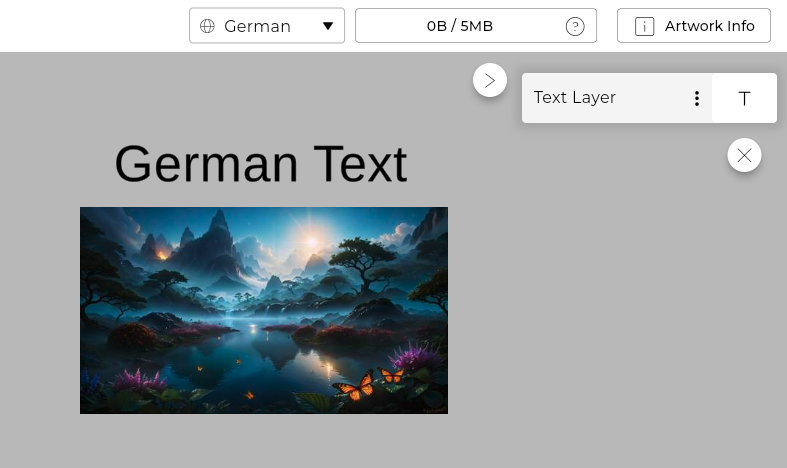
The new language now shows as active in the dropdown.
The dropdown now shows the new language as active.
Step 5: Edit the new version and publish
A new language starts as an exact copy of your default scene, so nothing looks different yet. Now change it however you like for this version, then Publish. Your changes apply only to that language version (German in this example).
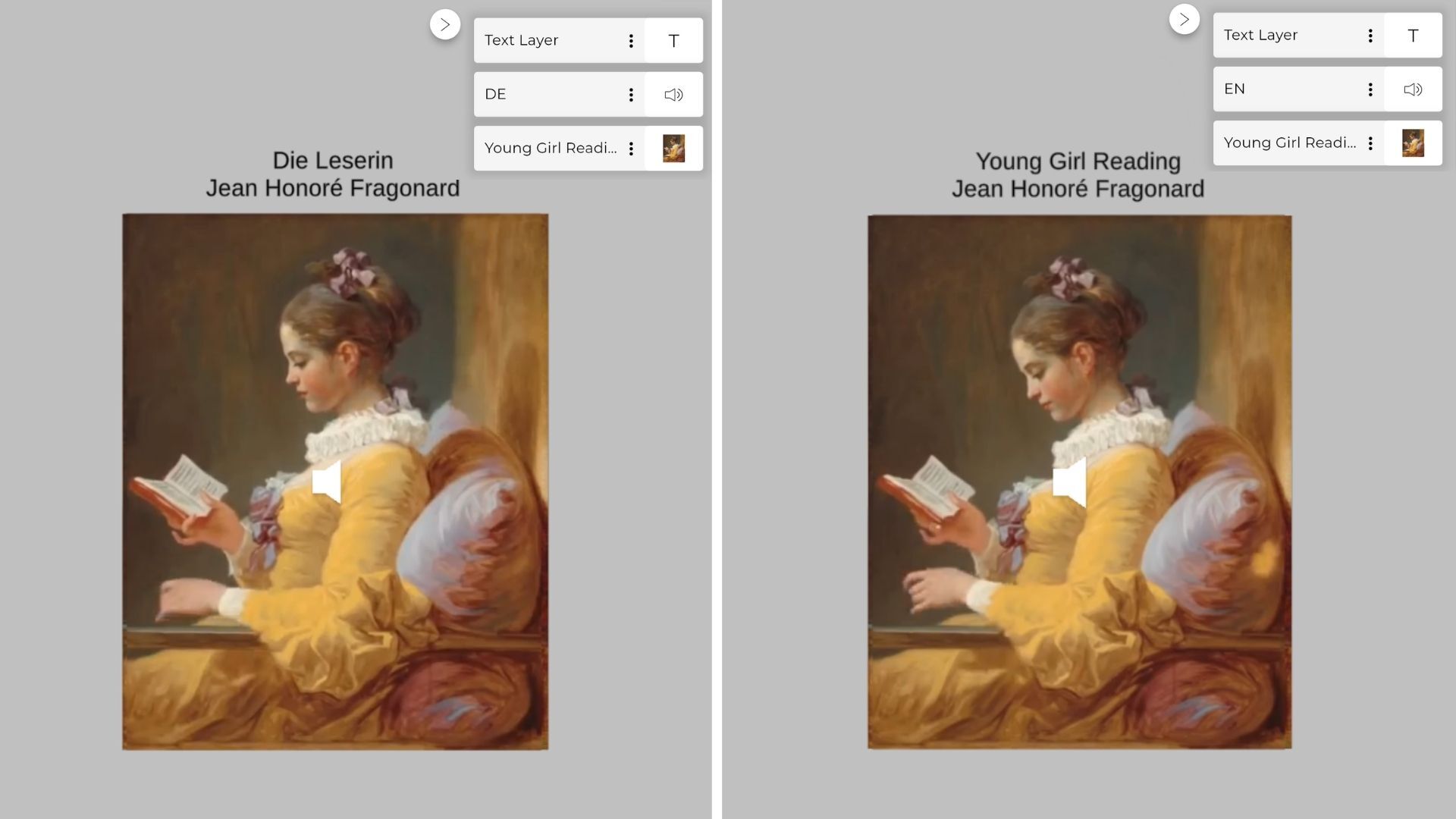
More than a voice-overA language version is a complete scene, not just a swapped audio track. Under the same painting you could pair a German voice-over with a German title, and an English voice-over with an English title, or change the video, text, and layers entirely for each language. Every version is yours to shape.
If a viewer's device language matches a version, they get that one. Otherwise they see the default.One artwork, two languages: the title and text layer adapt to each version.
Open the artwork again and you can switch freely between the versions.
Both versions now appear in the dropdown.Switch freely between the language versions of the same artwork.
Good to knowYou cannot add new languages while an artwork has errors, but you can still edit and save the versions that already exist.
How does it work?Viewers do not have to choose a language. Artivive automatically shows them the version that matches the language setting on their phone or in the app. For example, you could create English and German versions of the same artwork, with English set as the default. Viewers whose language is set to German will see the German version, and everyone else will see the English version.